
AI · Ask with sources
Get an answer about any unit, with the records behind it.
Ask from the unit, site or job you are on. The assistant looks up the records itself, under your own permissions, and every answer ends with the units, work orders, documents and spec sections it cited.
Available today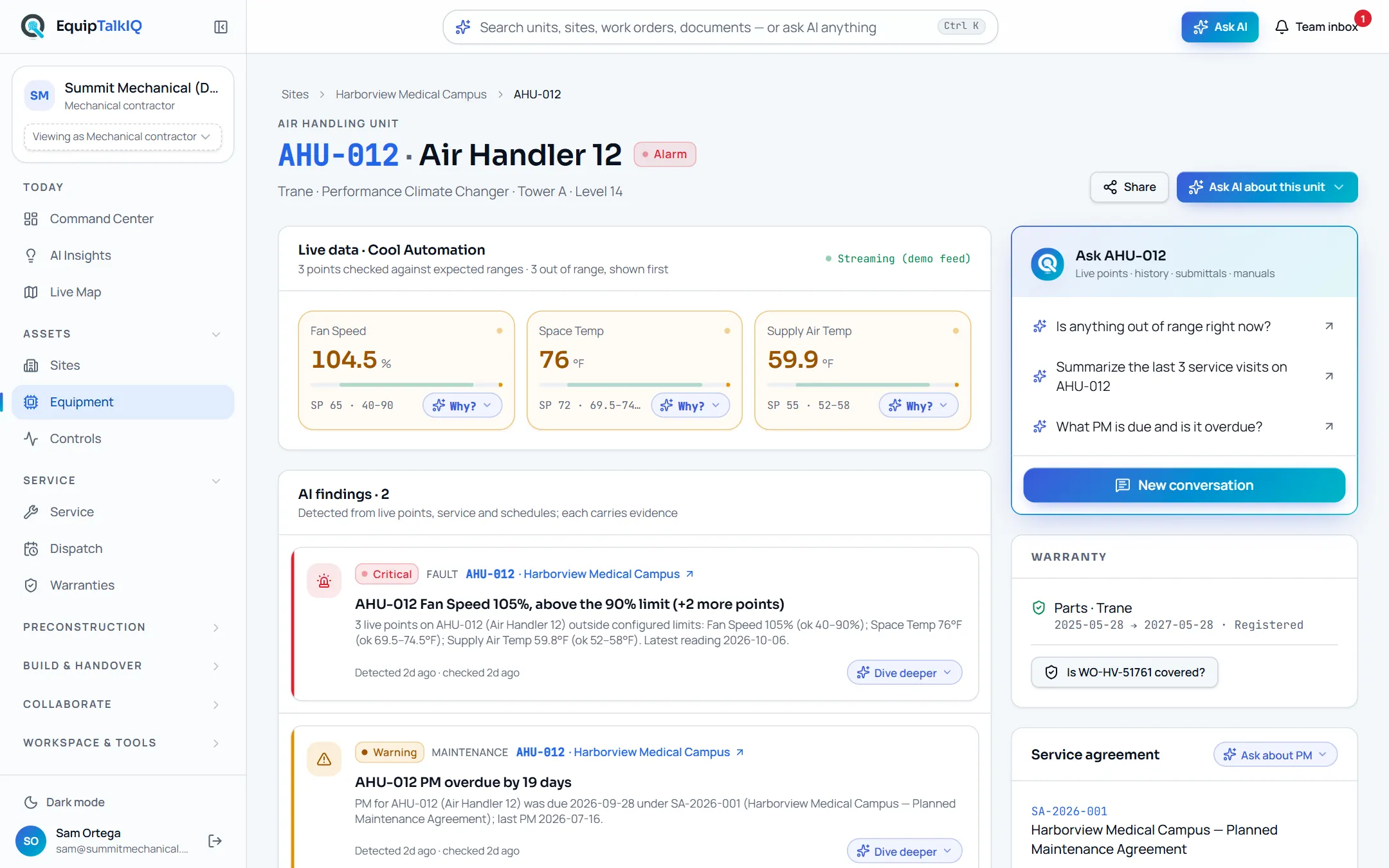
What changes
Today
- The answer is spread across work orders, warranties, plans and a spec book.
- Someone opens records one by one, or asks the person who remembers.
- A chatbot answer gives no way to check where it came from.
With EquipTalkIQ
- Ask from the record you are on, and the record goes with the question.
- The assistant searches service history, PM, warranties, plans, documents and specs itself.
- Every answer lists the records it cited, each one a click away.
How it works
4 steps, in the app as it ships.
Pick a question, or open a chat
Ask AI · Open chat about thisEvery Ask button is a short menu: two to five questions about the unit, site, job, document or finding you are on, plus “Open chat about this”, which opens a conversation with that record attached and no question sent. The top-bar Ask AI and Ctrl/Cmd+K ask about the whole portfolio.
The assistant looks it up
Working line · “Checked n sources”It starts from a short summary and searches through capped, read-only tools: equipment, service history, the service board, PM schedules, warranties, plans, documents and spec passages. The working line shows each lookup and how many records it found. A tag it cannot match comes back as an error, never a guess.
AI panel · answer with SourcesAPP SCREEN / SAMPLE DATA 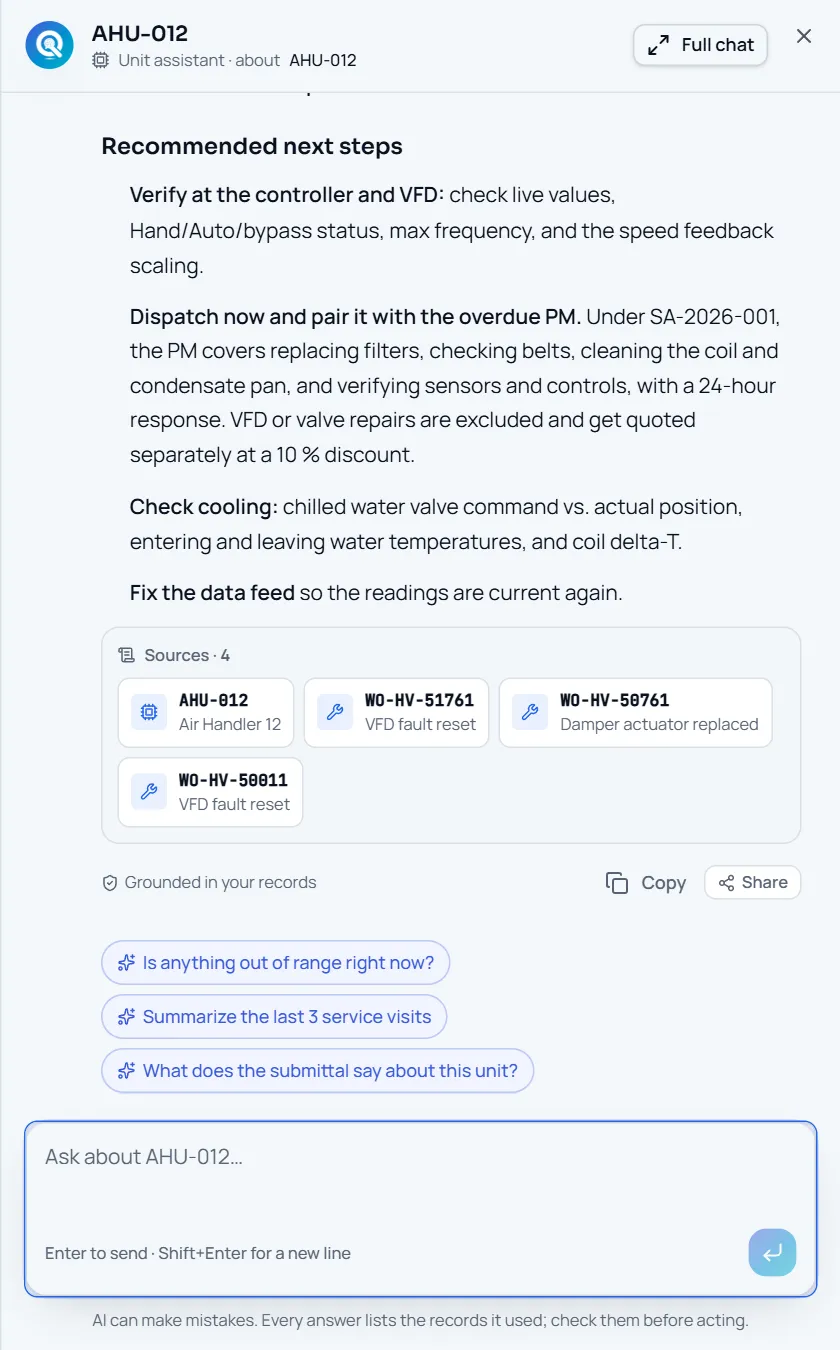
The AI panel: an answer about AHU-012 with Sources · 4 and “Grounded in your records”
Check the receipts
Sources · nUnder the answer, Sources shows the records the answer cites, as cards that open the unit, the work order, the document or the spec section. A record the answer never mentions is not listed.
Keep going, or pass it on
Full chat · ShareFollow-up questions sit under each answer. Full chat moves the conversation to its own page, where it is still there after a reload. Share sends the answer to a teammate’s Team inbox.
Receipts
What you can check for yourself.
Sources come from its own lookups
Source cards are built from the records the tools returned, and only the ones the answer actually cites.
“Sources · n” under each answerYou can see what it checked
Each lookup is listed with what it searched for and how many records it found; a lookup that failed is flagged.
The working line above the answerIt reads with your permissions
The assistant runs under the signed-in person’s own access, and a conversation opens only for the person who started it.
Any /chat threadOwners and reps get their own assistant
Their assistant answers only over the building or rooms they were given, with no tools into your company data.
“Answers use only what your account can see”Every answer is metered
Each model call is recorded with who asked, the feature, tokens and cost.
The AI usage pageWhat it won’t do
- Read your whole database at once: it retrieves capped sets of records.
- Guess at a unit it cannot find: an unknown or ambiguous tag is an error.
- Change a record, approve anything or send a message: the chat tools only read.
- Give owners or reps your company chat: they get an assistant over their own view.
Every AI answer, finding and draft follows the same rules. How the AI earns trust · Security
Who it’s for
The people on this screen.
- Project managers
- Service managers
- Technicians
- Building owners
- Manufacturer reps
For mechanical contractors · For building owners · For manufacturer reps
Works with
- Equipment recordIn the app
Units, live points with their feed label, open findings and service history.
- Service jobs and agreementsIn the app
Work orders, the service board, PM schedules, deficiencies and quotes.
- Specs and documentsIn the app
Spec passages cited by section, page and paragraph; submittals, RFIs and manuals.
Questions
Worth asking.
Does the AI read our whole database?
No. It starts from a short summary of the unit, site or portfolio and pulls records through capped tools, each returning a limited set of matches. That keeps answers fast on sites with hundreds of units.
What happens when it cannot find a unit?
An unknown or ambiguous tag comes back to the assistant as an error, and the answer says so. It never drops the filter to make a result appear.
Can it be wrong?
Yes. Under the chat the app says: “AI can make mistakes. Every answer lists the records it used; check them before acting.” The source cards are there so you can.
Can owners and reps ask questions too?
Yes, through their own assistant. It answers only over the building, rooms or visits they were given, and their questions are billed to your AI allowance and shown separately on the usage page.
Who can see my conversations?
Only you. Each conversation is a thread that belongs to the person who started it. The server replays earlier turns from storage and takes only your newest question from the browser.
Does the AI change anything?
No. Every tool the chat uses reads records; none of them writes. Sharing an answer or acting on it is something a person does.
Keep exploring
Related on the same record.
AI findings
Findings with their evidence, closed on their own when the condition clears.
AIAI usage and budgets
Every model call metered and priced, with a budget and a hard stop.
ConstructionCited spec answers
Ask the spec book. Every answer quotes section, page and paragraph.
See it on your own work.
We load your sites, units and documents during the pilot, so the walkthrough is on your own kind of work. The 90-day pilot is $9,000, credited to your first year if you continue.