
For manufacturer reps
Your submittals, your rooms, your visits. Inside the contractor’s record.
Reps get a workspace built around the handoffs that matter: a room per project with the contractor and the equipment schedule, a submittal builder that checks cutsheets against the spec and routes them for approval, site visits with AI-drafted checklists and reports, your own cutsheet library, referrals, and an assistant that answers only from what you can see.
Book a demoEQUIPTALKIQ / THE CONNECTED MECHANICAL PICTURE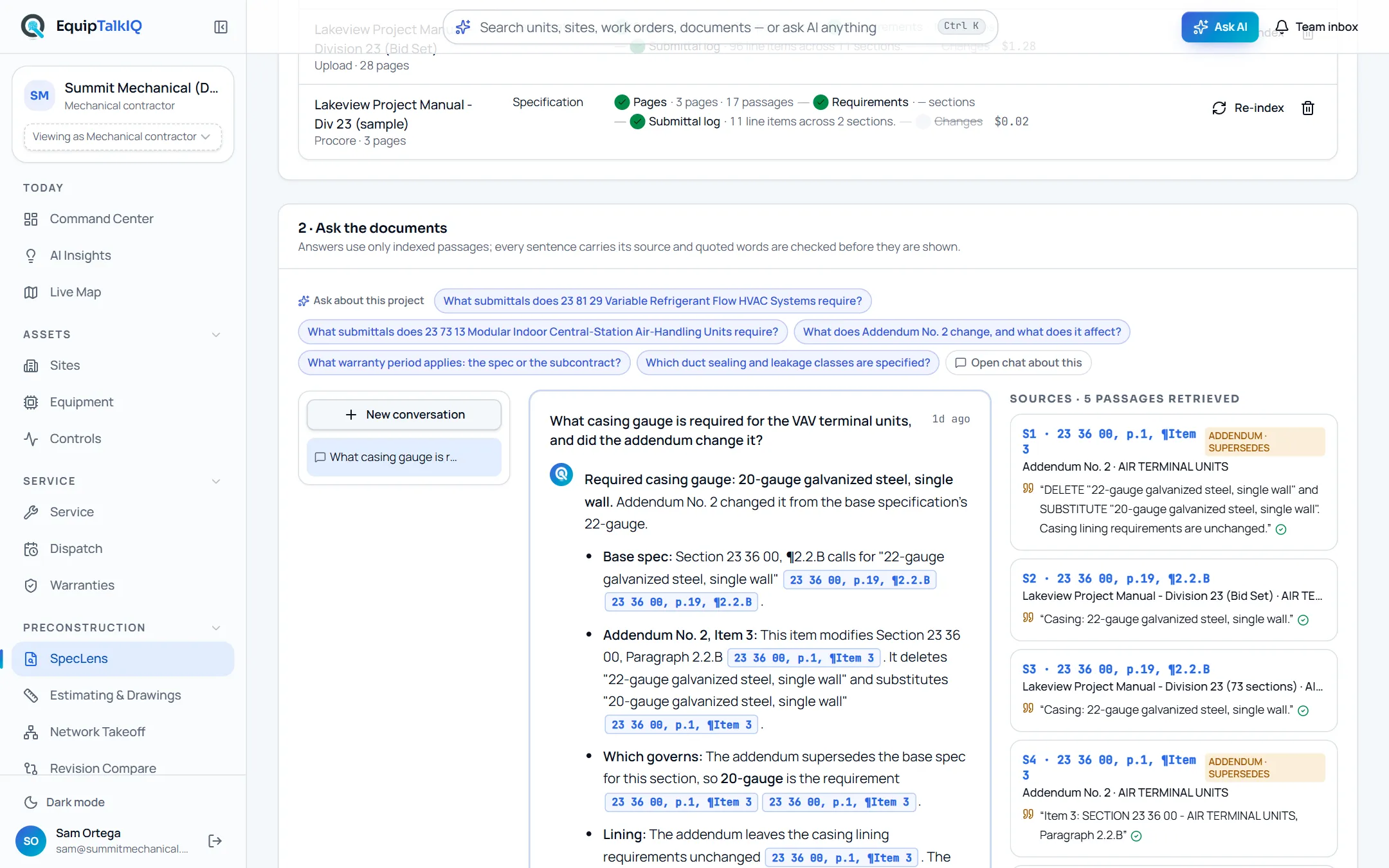
THE REP FLOW
From invite to filed startup report.
This is the path a rep account walks in the app. Every step is a page in the demo.
- 01
Sign up as a manufacturer rep, or follow an invite
Sign up · Manufacturer repChoose “Manufacturer rep” at sign-up, or follow a contractor’s invite to a room. A rep account lands on the Rep workspace and sees only what contractors share with it: rooms, the units in them, submittals, documents, visits and building packages.
- 02
Start the day with what needs you
Rep workspace · TodayRooms open, requests waiting on you (and how late), submittals in review, visits this week and units shipping in the next 14 days. The Needs-you queue lists contractor requests, submittals returned for revision and visit requests to schedule; Shipping next lists units with a ship date.
- Open rooms · waiting on you · submittals in review · visits · shipping
- Lines & profile: manufacturers, product lines, territory
- Sell EquipTalkIQ: referral link and pipeline
Rep workspaceAPP SCREEN / SAMPLE DATA 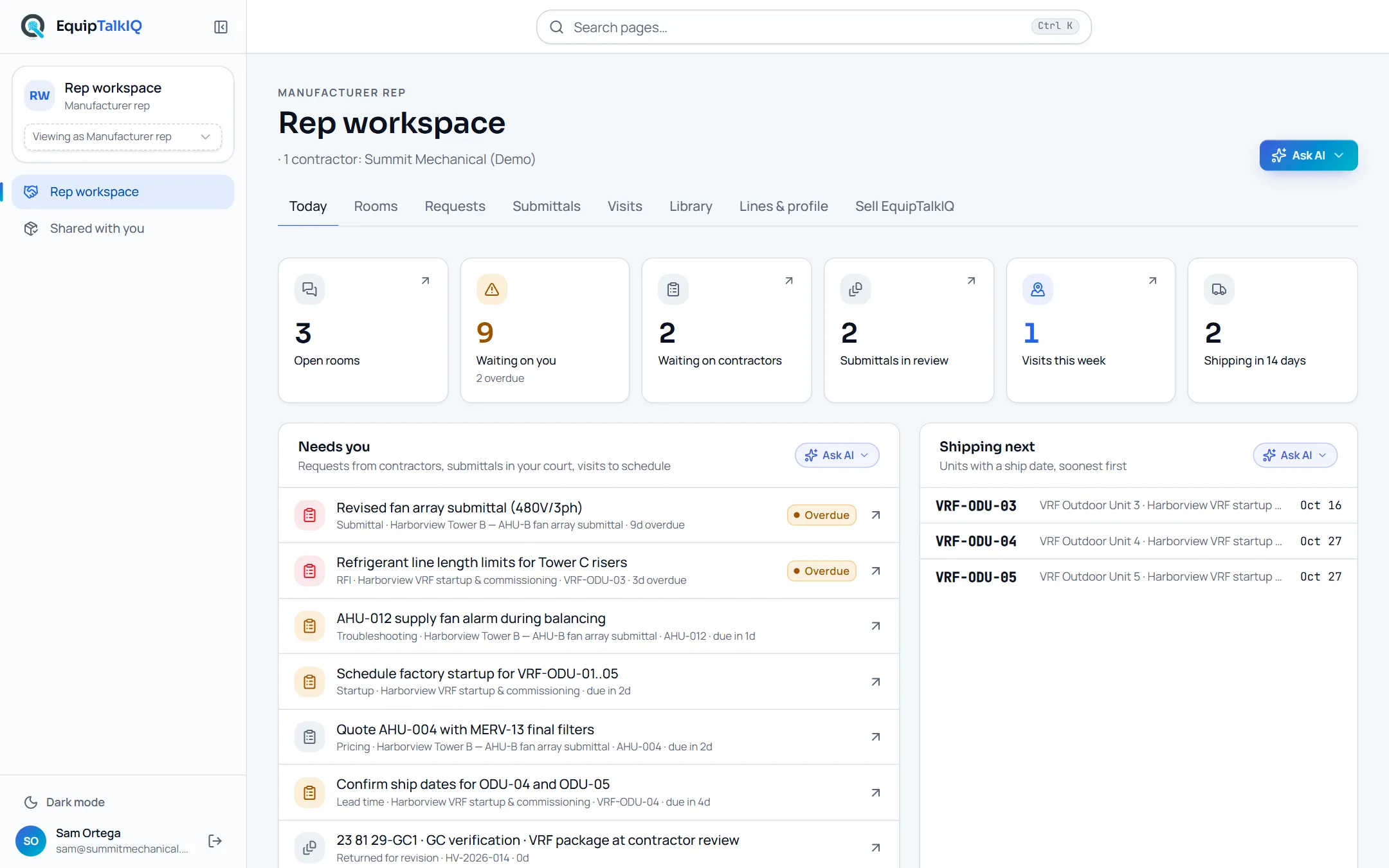
- 03
Work in a room per project and manufacturer
Rep workspace · Rooms · RoomA contractor opens a room for a project or a unit: startup, commissioning, submittal, warranty claim or quote. Inside it both sides see the shared equipment schedule (status, lead weeks, ship dates), requests with due dates that either side can answer, the documents you upload (cutsheets, IOMs), visits and the thread. The room is the only part of that contractor’s workspace you see.
- Schedule · Submittals · Requests · Visits · Documents · Thread
- Requests with due dates, answerable from either side
- Room documents are read on upload so the AI can cite “title p.n”
Rep Hub · shared roomAPP SCREEN / SAMPLE DATA 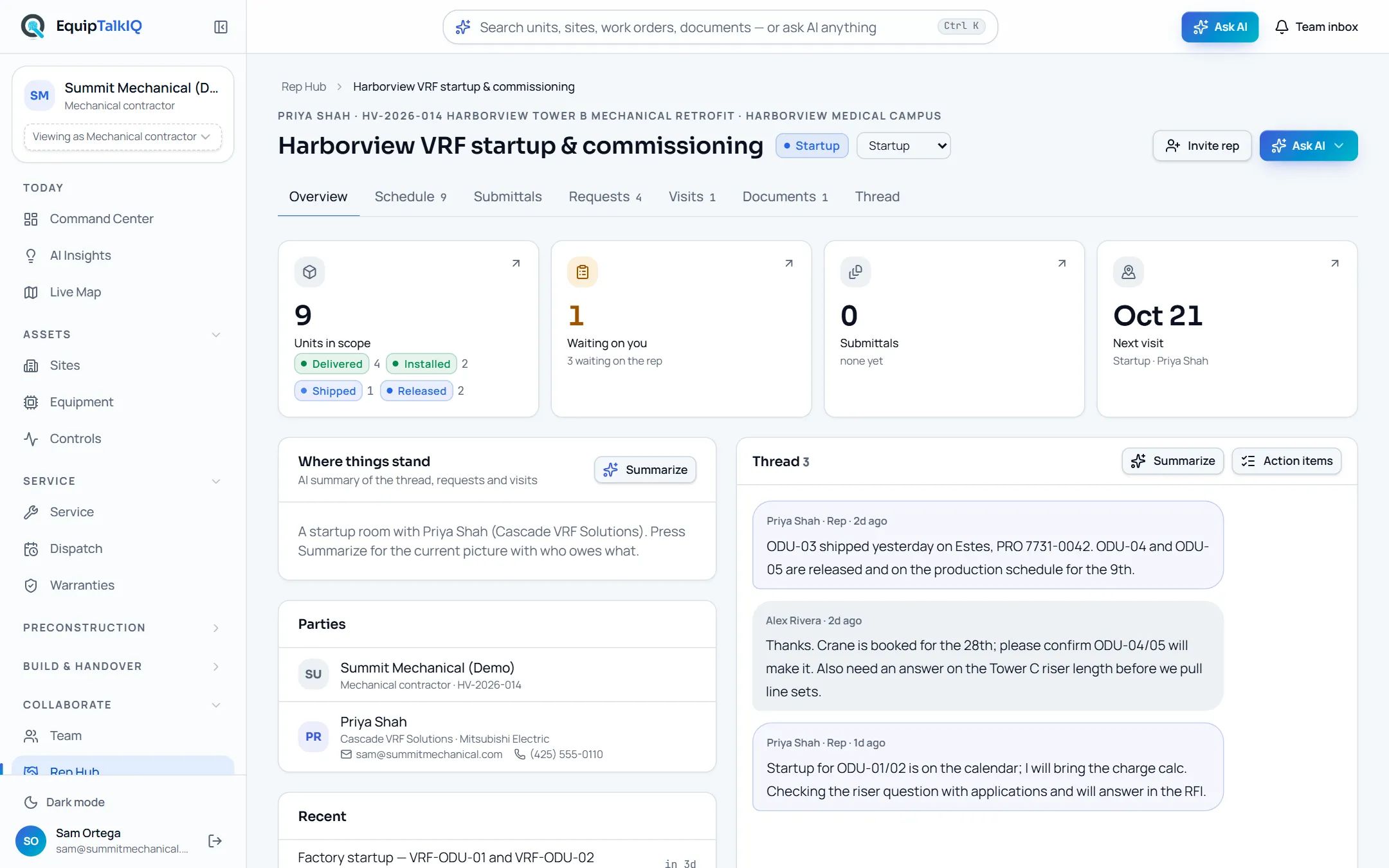
- 04
Build the submittal and check it against the spec
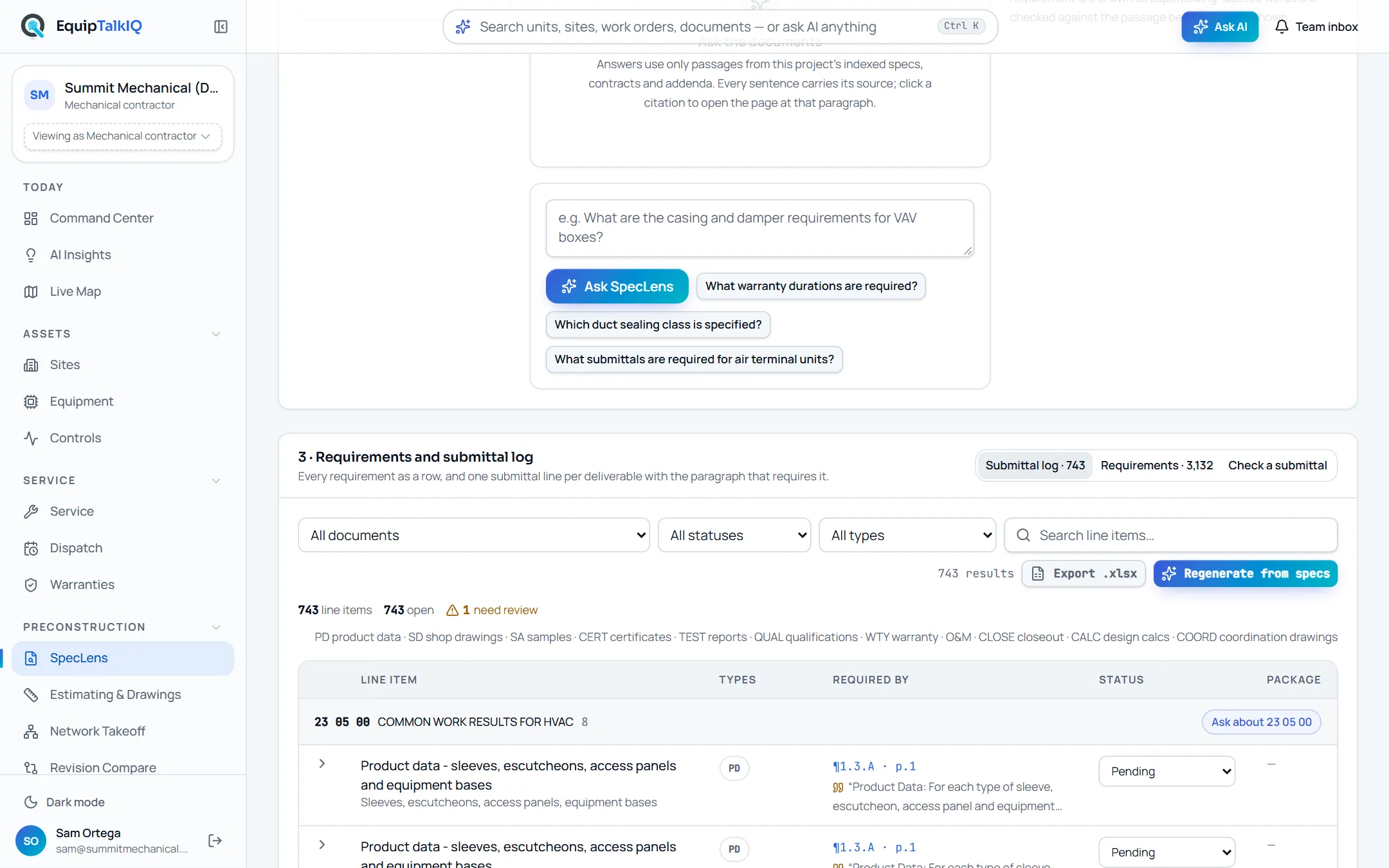
Submittals · Submittal builderAssemble a submittal from your cutsheet library, run the AI spec check against the project’s indexed specifications and route it for approval: rep, then contractor, then engineer review. AI drafts the cover letter and your response to engineer comments; you edit before anything is sent.
- Cutsheet library per rep
- AI spec check with cited passages
- Drafted cover letters and engineer responses
- 05
Run startup, commissioning, troubleshooting and installation visits
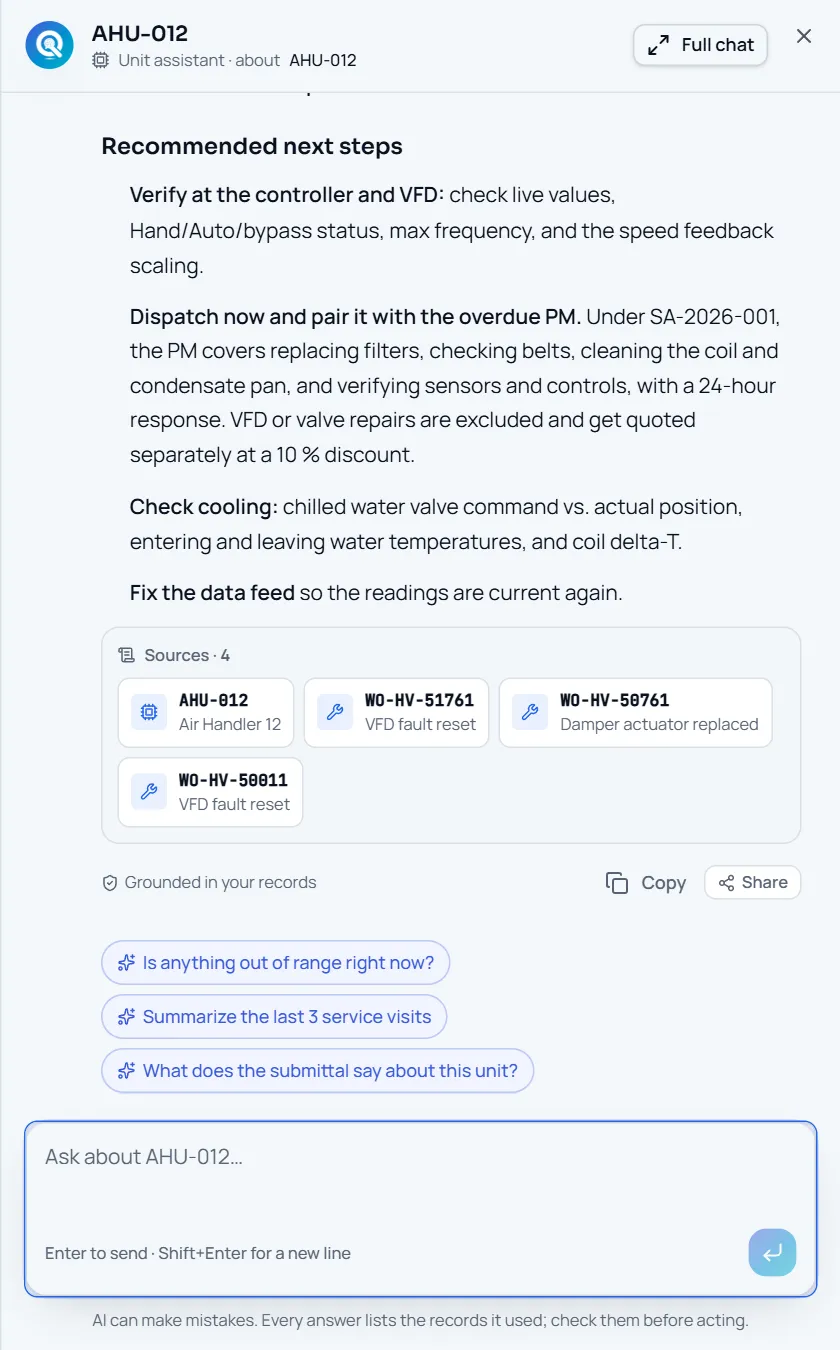
Visits · Visit reportA contractor requests a visit of one of four kinds with the units and a window; you schedule it and name the technician. Before a startup or commissioning visit, AI builds a pre-startup checklist per unit from the IOM text and cutsheets in the room. On site you type or dictate notes and add photos; AI drafts the report (summary, findings, readings in or out of range, punch items with owners, recommendations), you edit and file it, and one completed service record per unit lands in the contractor’s history.
- Four visit kinds: startup, commissioning, troubleshooting, installation guidance
- AI pre-startup checklist per unit from the room’s documents
- Filed reports become service records on each unit
- 06
Ask the rep assistant
Rep workspace · Ask AIEvery tab has an Ask menu: which rooms need a submittal, what is awaiting approval, which units ship next week, what is overdue to a contractor, plus “Open chat about this”. The assistant answers over your rooms, requests, submittals, visits and documents only, names its sources (room, unit, submittal, request, visit, document page) and opens with “Answers use only what your account can see.”
AI panel · answer with SourcesAPP SCREEN / SAMPLE DATA - 07
See what was shared with you
Shared with you · Turnover packagesBuilding packages and rooms a contractor granted to you appear under Shared with you. Open a turnover package to see the equipment you supplied in the owner’s record.
BOUNDARIES
Reps see the room, not the business behind it.
Sees
- Rooms a contractor opened for you: schedule, requests, documents, visits, thread
- Submittals you build and their approval status
- Your cutsheet library, lines and referral links
- Turnover packages shared with you
Never sees
- The contractor’s equipment list, service board, dispatch or planning
- Labor, rates, budgets or internal notes
- Other reps’ rooms or libraries
- The company chat and its retrieval tools
WHY REPS BRING IT TO OWNERS
Stay connected to the equipment you sold.
Reps can introduce the owner view to the owners and property managers they work with. The owner gets a clear picture of their building; you stay connected to the equipment you sold, started up or support, without seeing the contractor’s business.
THE RECORD OUTLASTS THE PROJECT
Win the job with cited answers.
Then keep the building talking.
Explore EquipTalkIQ with sample project data: takeoff, specs, planning, turnover, service, dispatch and controls.
Bring your questions. Follow the sources.